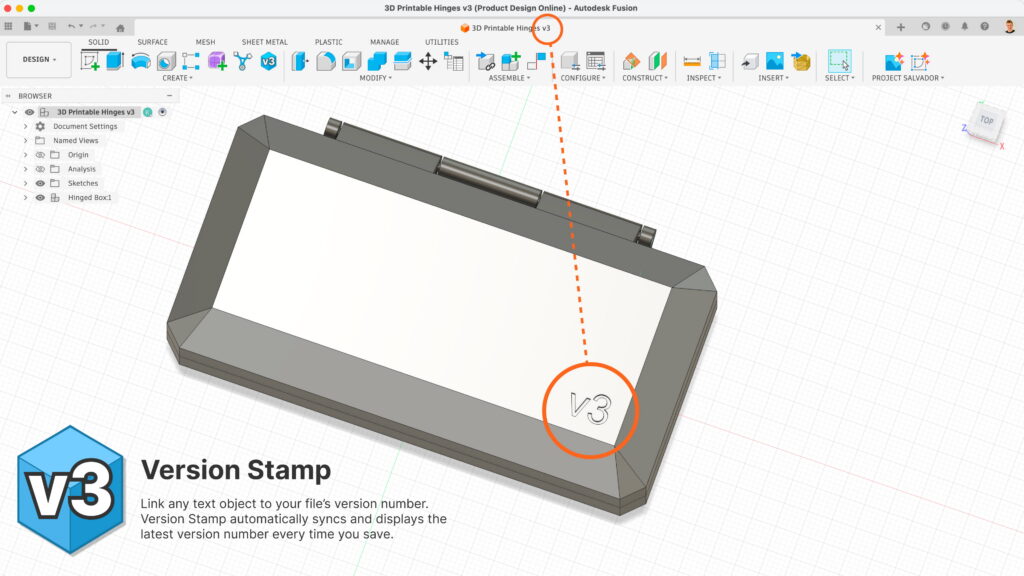
Version Stamp is an Autodesk Fusion Add-in that allows you to link any text object to your file’s version number. It will then automatically sync and display the latest version number every time you save.
Why use Version Stamp?
Stop guessing which prototype is which. Version Stamp bridges the gap between your digital design and your physical parts. It automatically syncs the version number of your Autodesk® Fusion® file with selected text objects in your model. Text will automatically update with the latest version number whenever you save your design. Whether you are 3D printing, CNC machining, or laser cutting, ensure that the “Source of Truth” is physically embossed or engraved on every iteration.
- Eliminate Confusion: Never mix up v4 and v5 of a 3D print again.
- Total Automation: The text updates the moment you hit “Save.” No more manual typing or human error.
- Professional Workflow: Keep a clean, traceable history of physical prototypes for stakeholders and testing.
Where do I download the add-in?
The Version Stamp add-in is only available on the official Autodesk App Store.
How to use Version Stamp
1. Create Your Text
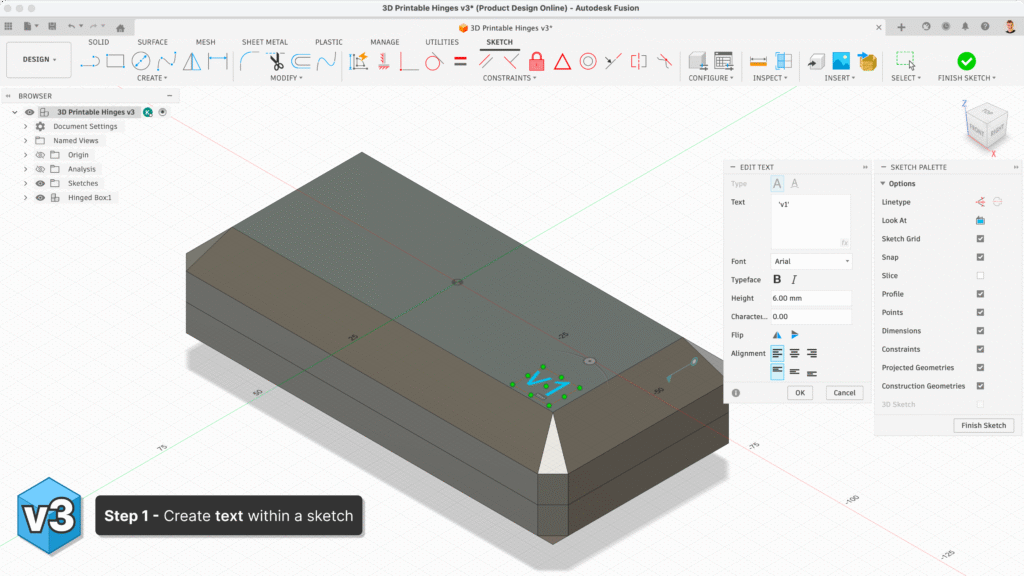
Create a standard Text element within a Fusion Sketch.
- Pro-Tip: Type a “placeholder” (like V0) to set your font, height, and position. This ensures you have the exact footprint for your 3D feature later. Note that you can technically put any letters or numbers in the text box for the Version Stamp add-in to work. Once synced, it will always override the text with the version number.
2. Sync the Add-in with Text
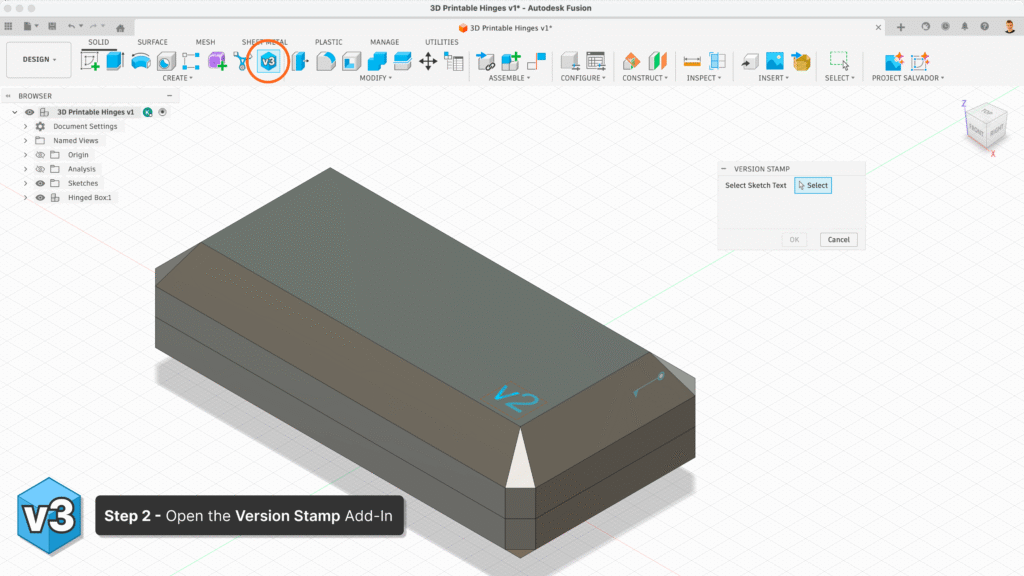
Open the Version Stamp tool from the Create Menu of the Solid tab or from the Toolbar.
3. Select Sketch Text
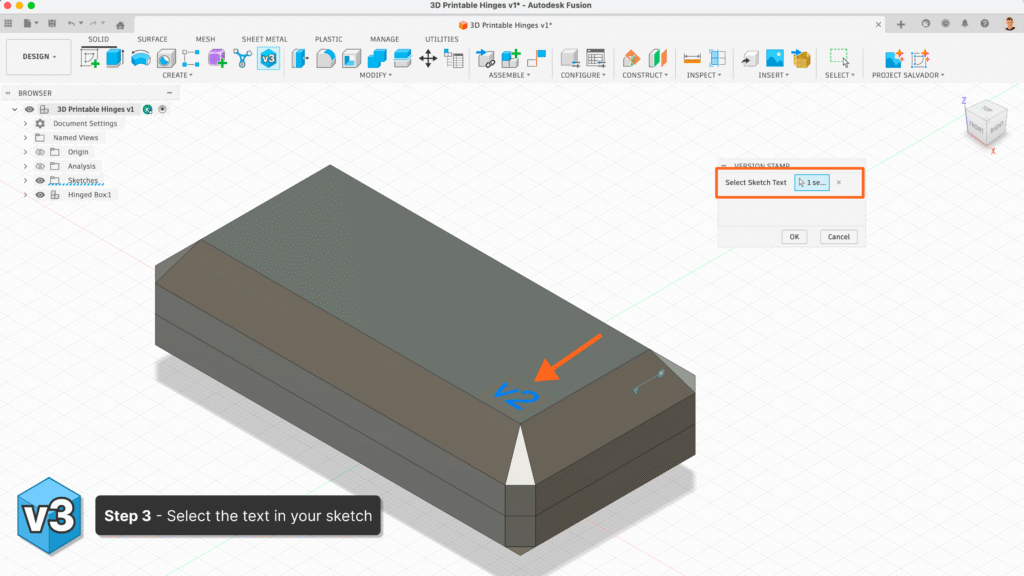
- Select Sketch Text: Click the text object (blue area of text) you just created.
- Confirm: Click OK in the Version Stamp dialog box.
Note: Once linked, the text will immediately update to match your current file version (e.g., “v3”).
4. Sync Confirmation
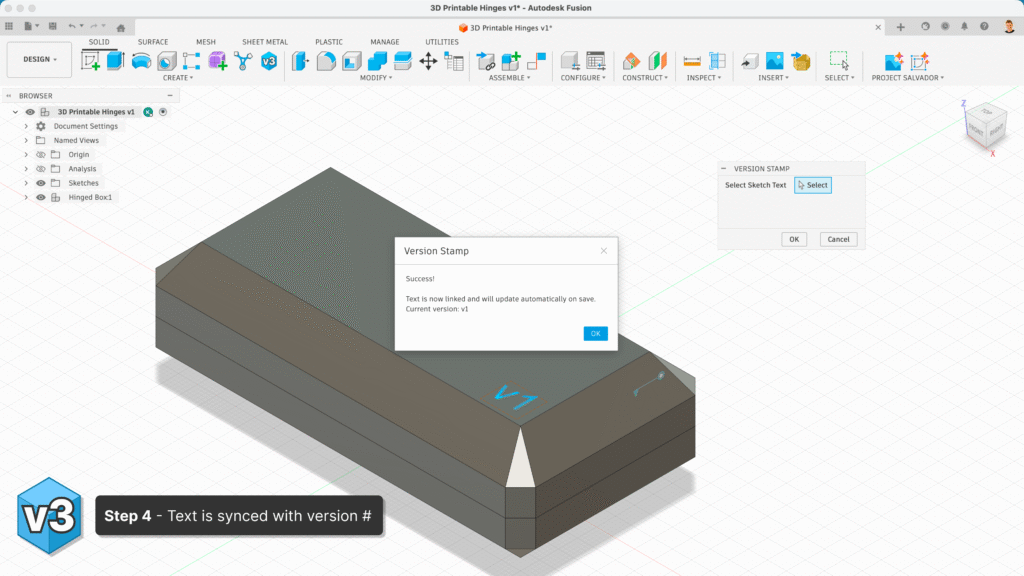
You’ll receive a success confirmation after completing step 3. This will automatically pull in the file’s version number and update the text, regardless of what version your file is.
Note: This will work with files at any time. You can add Version Stamp text to old design files if needed.
5. Extrude/Emboss the text
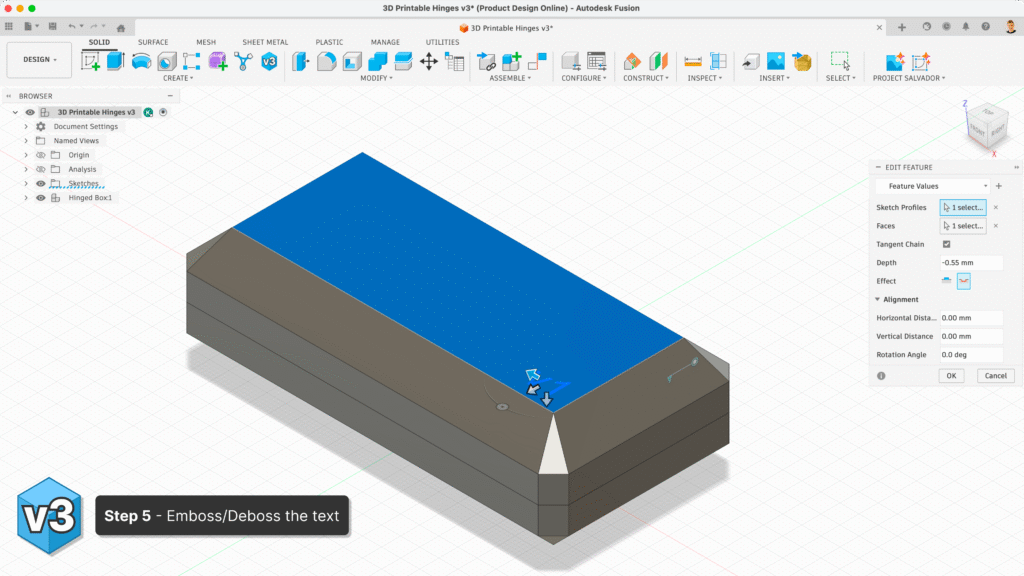
Use the Extrude or Emboss commands on the linked text. Because the text is “live,” the 3D geometry will follow any future character changes automatically.
6. Design & Save
Continue modeling as usual. There is no need to keep the Version Stamp add-in open (unless you want to sync additional text).
Every time you save (and increment the version), Version Stamp triggers a background update. Your 3D text will physically reflect the new version number without a single manual keystroke. This makes it easy to focus on 3D printing or creating your designs without losing track of versions.
Notes
- You first create text within a sketch before you can use the add-in
- The text must be a Sketch Text object (created via SKETCH > CREATE > TEXT) and not 3D bodies that represent text/letters
- Each time you save your file, the version number increases
- You can select multiple sketch text objects, if desired. They can be on the same 3D body or different 3D bodies.
FAQs
Why is it a paid add-in?
- Our goal is to provide a professional-grade tool that pays for itself through the time and effort it saves you in your daily workflow.
- The low cost of the app will help us continue future development.
Why doesn’t the Add-in appear in the Create menu?
- Make sure the add-in is running (check UTILITIES > ADD-INS > toggle Version Stamp on)
- Try restarting Autodesk Fusion
Why can’t I select the text?
- Make sure you’ve created sketch text. The Sketch must be visible and not blocked by 3D bodies.
- For ease of use, exit sketch mode before running the add-in.
Why doesn’t the version number change?
- The version only increments when you save the file
- Try saving your design and running the add-in again
Privacy Policy for our Fusion Add-ins
Last Updated: February 17, 2026
This Privacy Policy describes how Kennedy Enterprises, LLC dba Product Design Online (“we,” “us,” or “our”) collects, uses, and protects information when you use the Version Stamp and Learn Fusion add-ins for Autodesk Fusion.
1. Data Collection and Usage
We are committed to a “Privacy by Design” approach.
- Data Collection: This App does not collect, store, or transmit any personal data, user-identifiable information, or usage metrics. All processing performed by the App occurs locally on your machine within the Autodesk Fusion environment.
- Method of Collection: Since no data is collected, there is no method of collection (such as background tracking or forms) implemented within this App.
- Use of Data: As no data is collected, no data is used, sold, or shared for any purpose, including analytics or advertising.
2. Third-Party Data Sharing
We do not share any user data with third parties. We confirm that any third-party tools or SDKs used in the development of this App (such as the standard Autodesk Fusion API) do not collect personal information through our App’s implementation. Any data interaction required for the App to function (such as checking your license via the Autodesk App Store) is handled directly by Autodesk via their standard Entitlement API, and we do not receive or store that data on our own servers.
3. Data Retention and Deletion
Because we do not collect or store any user data, we do not retain any personal information. In the event that you contact our support team via email, we will only retain your contact information for the duration necessary to resolve your request.
4. User Rights and Revocation of Consent
Since no data is collected, your privacy is maintained by default.
Data Requests: Because we do not store your data, any request for data deletion or access will result in a confirmation that no such data exists in our records. For support-related inquiries, you may contact us at support[at]productdesignonline.com.